Tutorial
How to make a video with Bildy
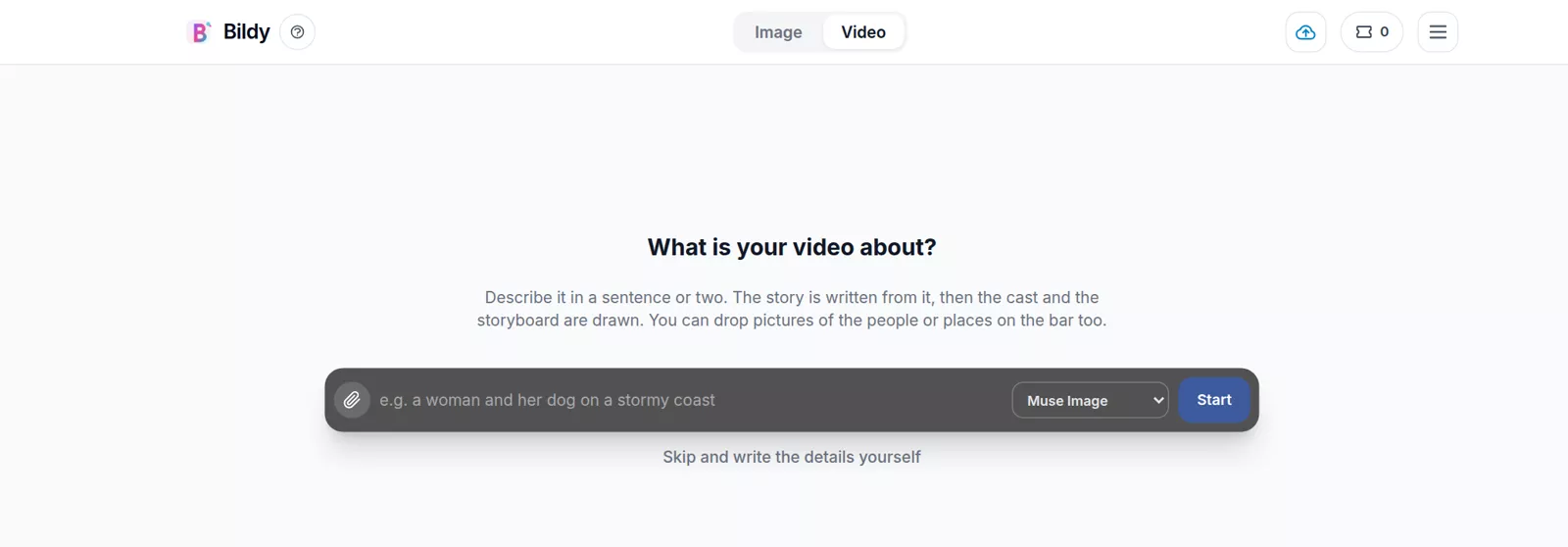
You make a video in four steps, and the editor shows them as tabs at the top: Cast and story, Pictures, Draft video and Final video.
Before you start
Start a new video from one sentence or a whole script
Open the editor and click Video at the top of the page. Type your idea into the bar at the bottom and press Start. One sentence is enough, for example “A young woman finds an old letter in her grandmother’s attic and reads it as the rain starts”. You can also paste a script you wrote, or attach photos of the people who should be in it.
Bildy writes the story from your idea and splits it into scenes. Then it draws a character sheet for each person, a picture of each place and a storyboard. That takes a minute or two. If you would like to write everything yourself, press Skip and write the details yourself, under the bar.
Every video gets its own folder in Local History, on the right side of the editor. You can close the tab and open the folder later to carry on.
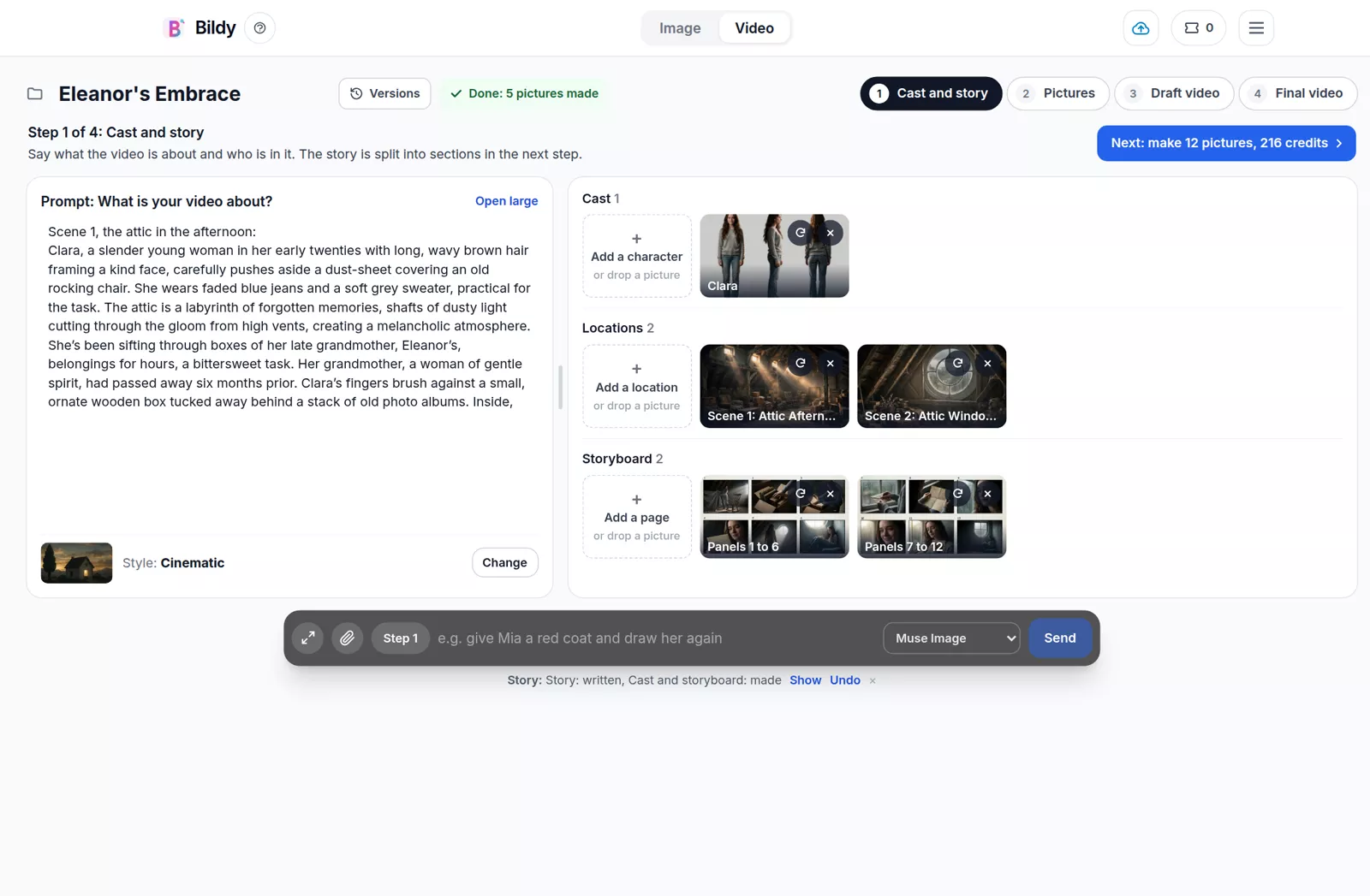
Step 1 of 4
Cast and story: check the people, places and storyboard before any shot is drawn
The story is on the left. You can edit it right there, or press Open large to read it in a bigger window. Under it you pick a style, such as Cinematic, and Bildy draws every picture in the video in that style.
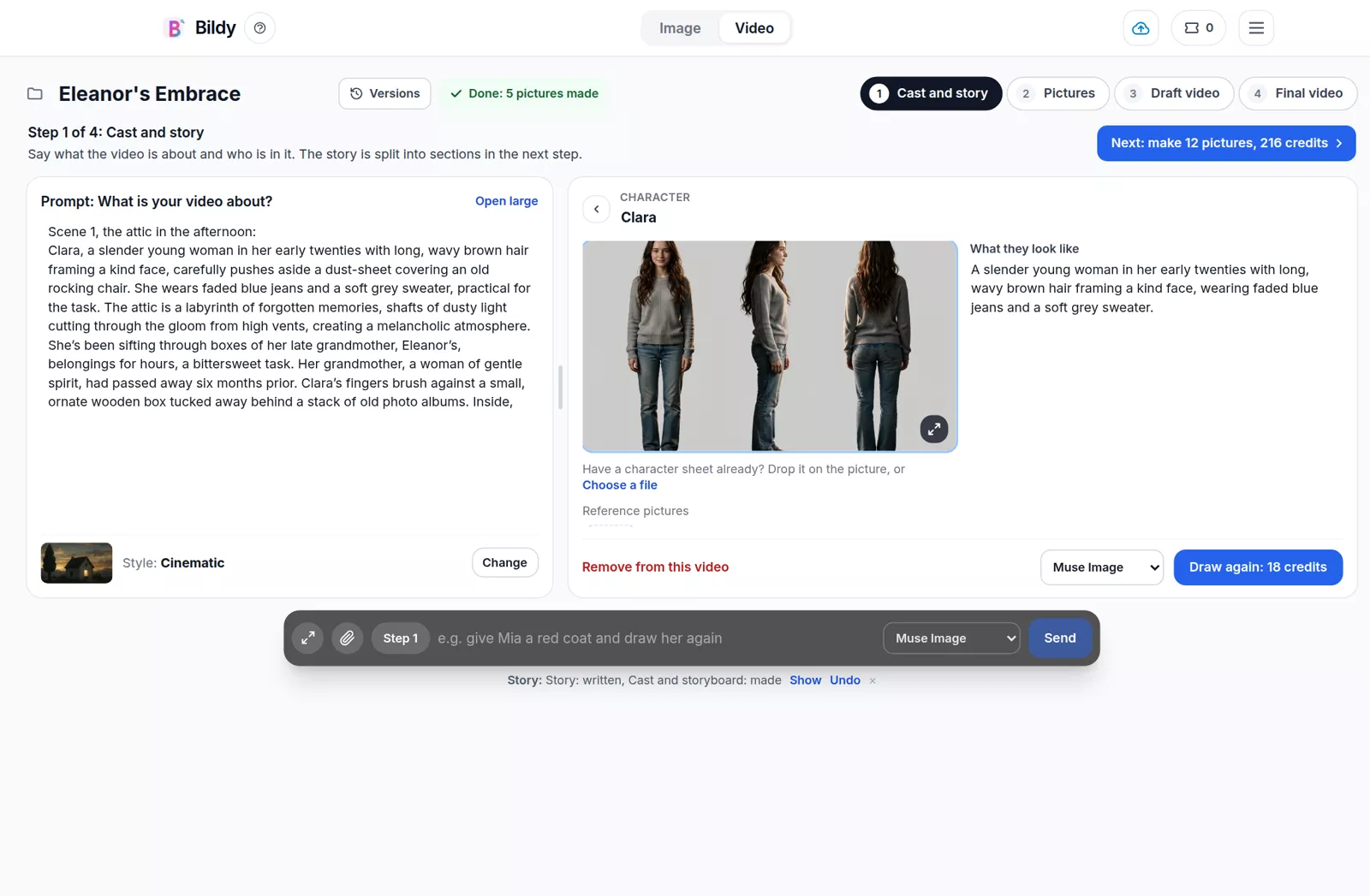
On the right are the cast, the locations and the storyboard. Click a character to open it:
- You can change the name at the top and the description on the right. Bildy draws the person from that description.
- You can add up to three reference pictures under the sheet, for example photos of a real person.
- If you have a character sheet already, drop it on the picture or press Choose a file. Bildy then uses yours.
- Draw again makes a new sheet, and Bildy keeps the old one as a reference picture.
A location works the same way. Its picture shows the place with nobody in it, so every shot in that place has the same light and colours.
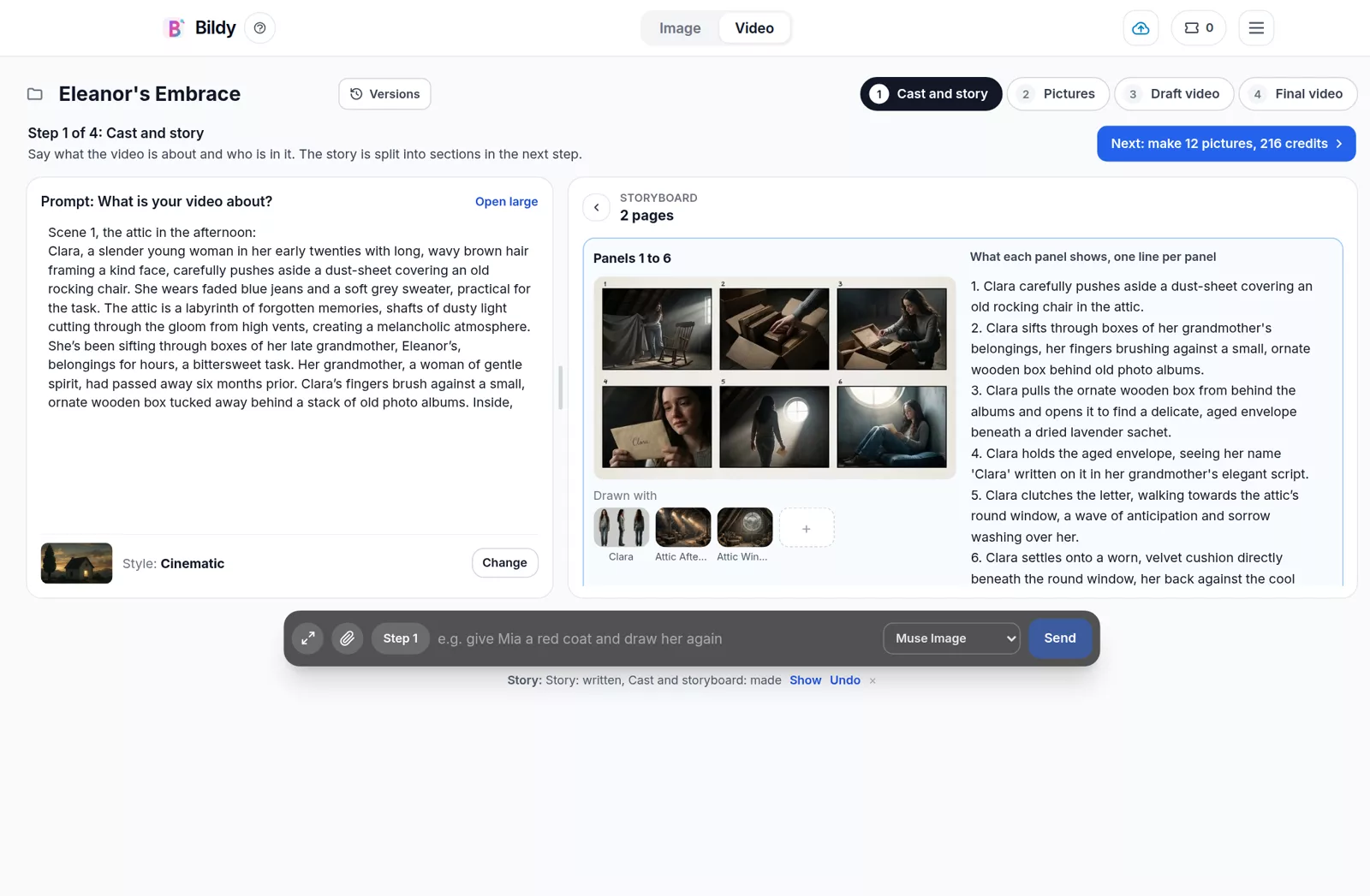
Click a storyboard page to see all the pages one under the other. Each page lists the character sheets and location pictures it was drawn with, and has one line of text per panel. Every panel becomes one section of your video. To change what a panel shows, edit its line and press Draw again.
You can drag the bar between the story and the cast to make either side wider. You can also type a change into the bar at the bottom, like “give Clara a red coat and draw her again”.
When everything looks right, press Next at the top right. The button says how many pictures it makes and what they cost.
Step 2 of 4
Pictures: make one picture for every section and fix the ones you don’t like
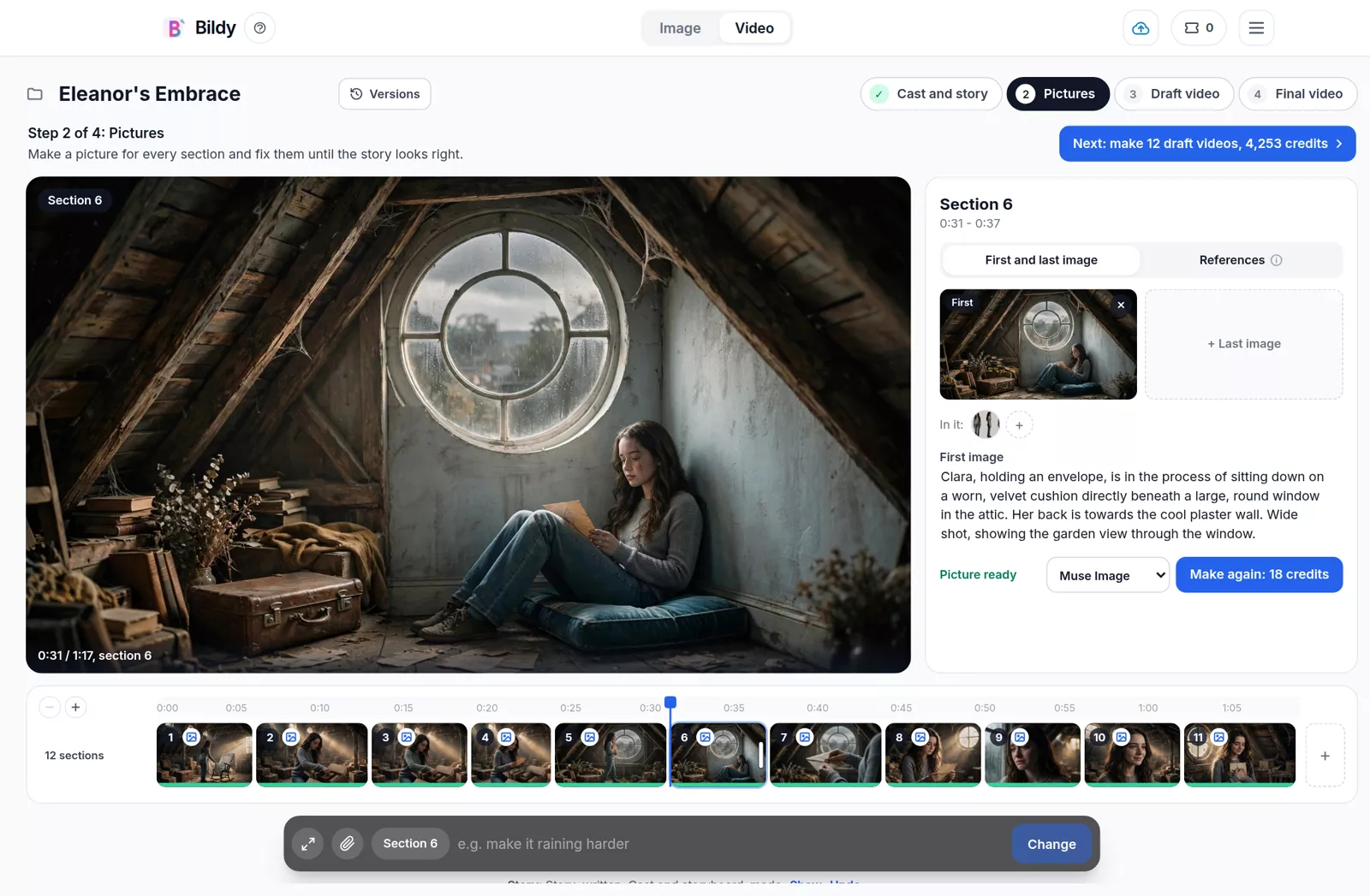
Bildy draws the first picture of every section from the character sheets and location pictures of step 1, so your characters look the same in every shot. You see each picture appear in the timeline. If you change your mind, press Stop on the progress line. Bildy skips the pictures it hasn’t started and finishes the ones it has.
Click a section in the timeline to see its picture large. On the right you can:
- edit the text the picture is drawn from and press Make again
- add or remove the people in the shot, next to “In it”
- pick another picture model from the list next to the button
To change a picture without rewriting its text, type the change into the bar, for example “make it raining harder”, and press Change.
Each section is guided in one of two ways. With First and last image, the video starts on one picture and can end on another. With References, the video model gets the character sheets and location pictures instead. A video model takes one or the other, so you choose for each section.
Undo under the bar takes back your last change. Versions, next to the project name, has earlier versions of the whole project, and Bildy saves one every time you press Next.
Step 3 of 4
Draft video: check movement and timing with cheap, low-resolution videos
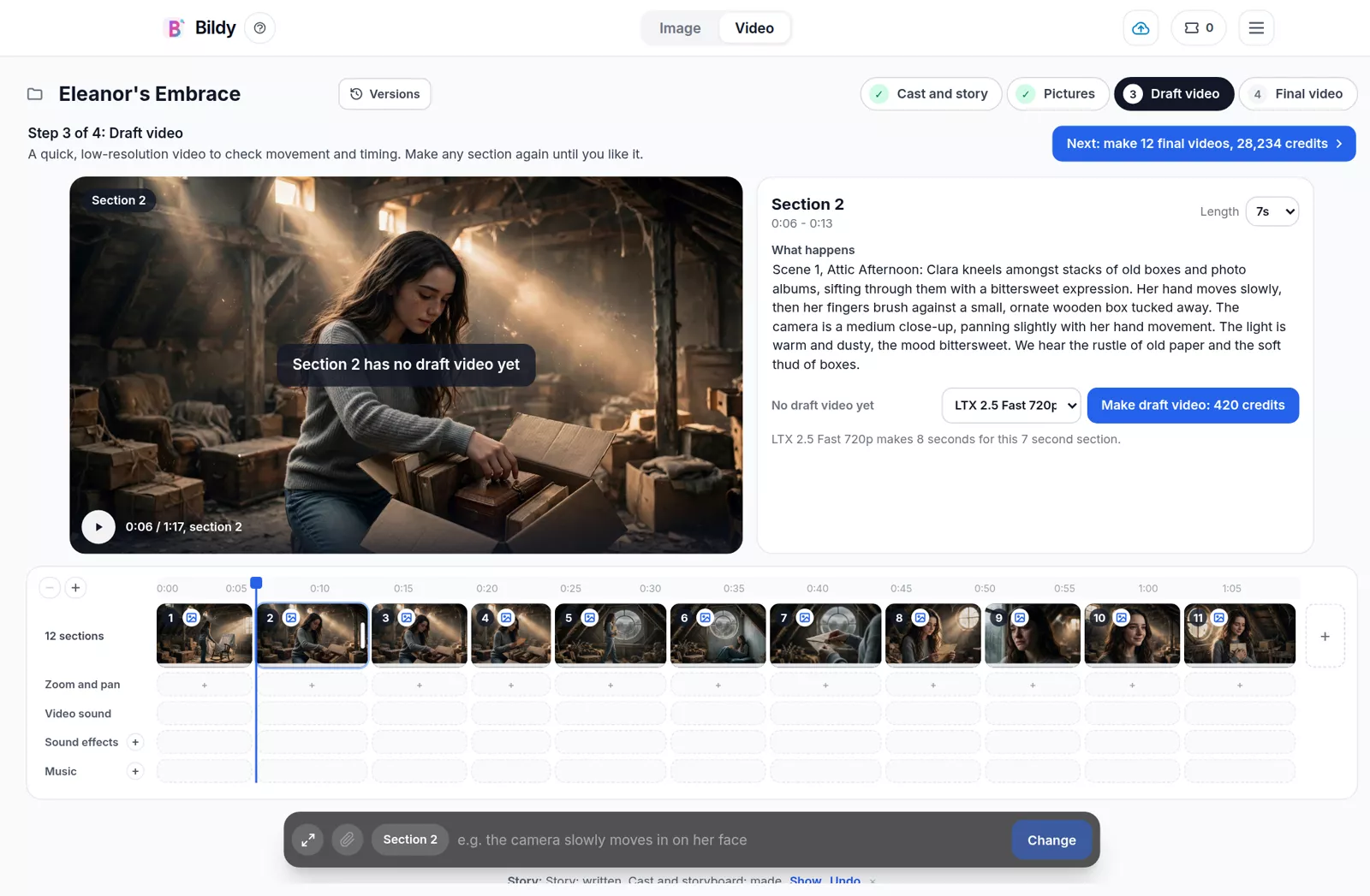
Press Next to make a draft video of every section. Drafts are quick and cost a fraction of a final video. You use them to see how people move and how long each shot runs. Make any section again until you like it, with the same text or a new one.
The Length list on the right sets how long the video model makes a clip. How much of the clip plays is up to you, in the timeline:
- Drag the right edge of a section to make it shorter. Bildy asks whether to cut the end or speed the video up.
- Drag the right edge out to make it longer. Bildy asks whether to slow the video down, and moves the sections after it along.
- Drag the left edge to cut the start. You can always drag it back to the full clip.
The timeline has four more rows under the sections:
- In Zoom and pan you give a section a camera move. You can zoom in, zoom out or stay zoomed in, pan left, right, up or down, and set how strong it is in percent. For a zoom you also pick which part of the picture to zoom toward. A zoom and a pan can run at the same time.
- Video sound is the sound each video came with. You can mute it or fade it in and out per section.
- In Sound effects you press + to add a sound file to a section.
- In Music you press + to add a song under the whole video.
Press play in the player to watch the whole video from the first section to the last, with all the sound.
Step 4 of 4
Final video: make every section in full quality and export one MP4
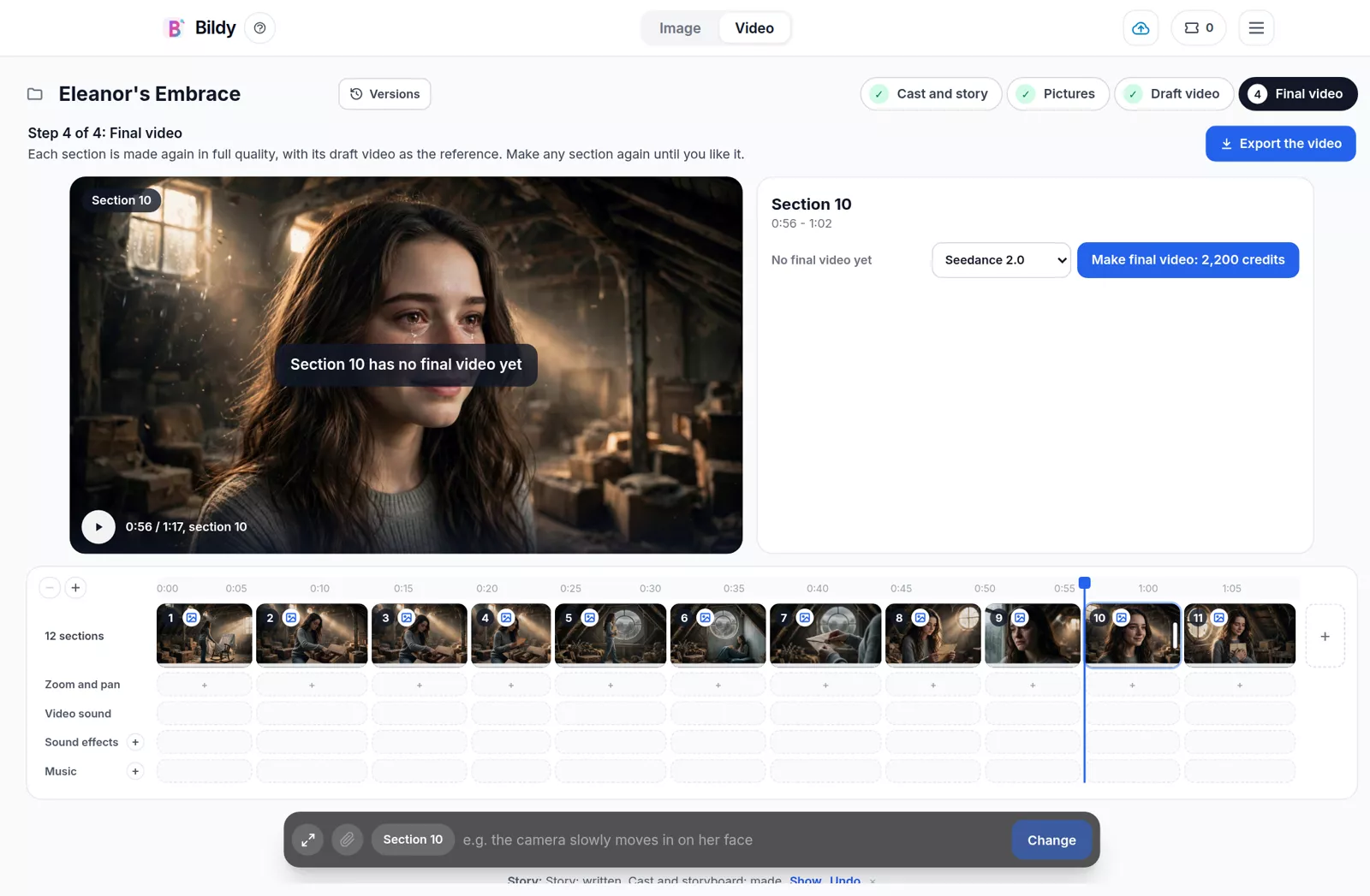
Press Next to make the final videos. Bildy makes each section again in full quality with a better video model, and sends the draft along as a reference, so the movement stays the way you checked it.
Final videos cost more than drafts, and the Next button shows the full price before you press it. You can also make one section at a time from the right side.
Your cuts, speed changes, zooms and pans, sound effects and music are the same as in the draft step.
When the sections are ready, press Export the video. You choose final videos where they are ready and drafts for the rest, or drafts only, and which sound rows go into the file. Bildy puts the video together on your device, which can take a few minutes, and exporting costs no credits.
- Every button shows its price in credits before you press it.
- You can go back to an earlier step any time with the tabs at the top.
- Bildy saves your pictures and videos in the project’s folder in Local History.
- If you turn on sync, you can open your video projects on your other computers too.