What's new in Bildy video: reference images, MiniMax H3, and longer clips
By Bildy Team
We changed four things in video generation this week. You can now decide what each attached image is for, by putting it in a first frame slot, a references slot or a last frame slot, which means you can use a product screenshot to shape a scene without it becoming your opening shot. MiniMax H3 is in the model list at 768p and at 2K. Generated clips have no size limit any more, so you can download a 30-second render at 720p with sound in full. And we now send your style preset and your saved characters to the video model.
Why a product screenshot belongs in the references slot
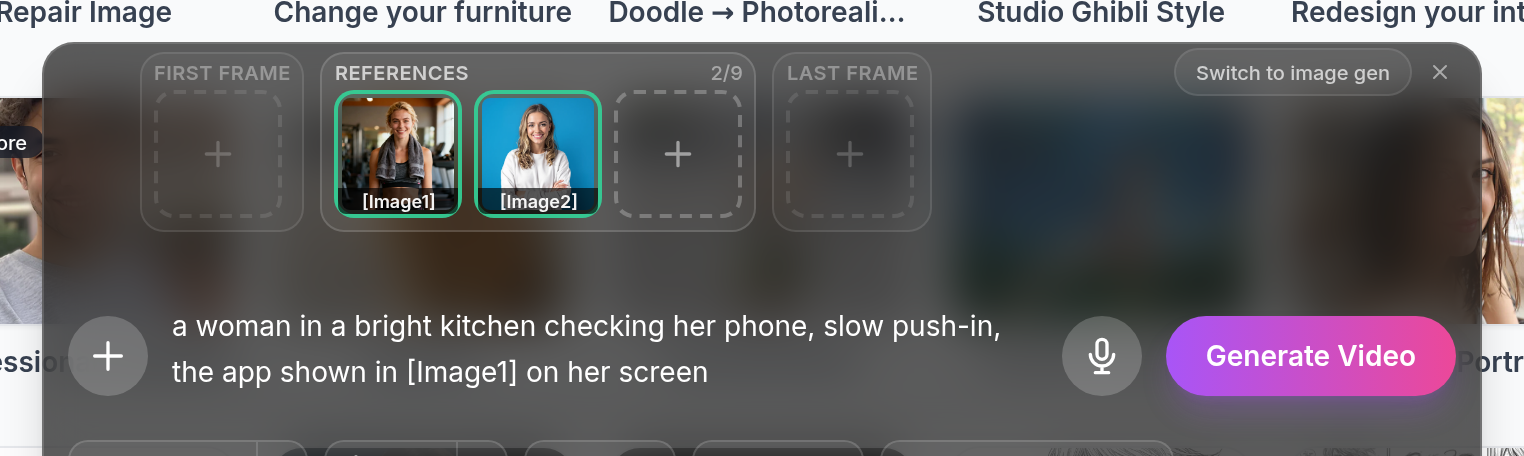
Say you want a video of a woman in her kitchen, checking your app on her phone. You have a clean screenshot of the app, so you attach it, write a careful prompt about the kitchen and the light and a slow push-in, and generate.
Until this week that screenshot became your opening frame, because we sent every attached image to the model as the first frame, and the model uses a first frame to decide how the clip opens. You wanted a woman in a kitchen and you got a video that begins on a screenshot, with very little of your prompt anywhere in the result.
You use a reference image to give the model a different instruction, showing it what one thing looks like and letting it build the scene from your prompt, so that the woman and the kitchen and the light and the camera move all come from the words you wrote, and the only thing you take from the screenshot is what is on her phone.
Seedance 2.5 accepts up to 30 reference images, MiniMax H3 accepts 9, Kling v3 Omni accepts 7 (or 4 if you also give it a video), and Veo 3.1 accepts 3.
You can now set an image as the first frame, the last frame or a reference
In video mode the strip above the prompt is split into three sections, and you put every image you attach into one of them, using the small arrows on each thumbnail to move it between sections.
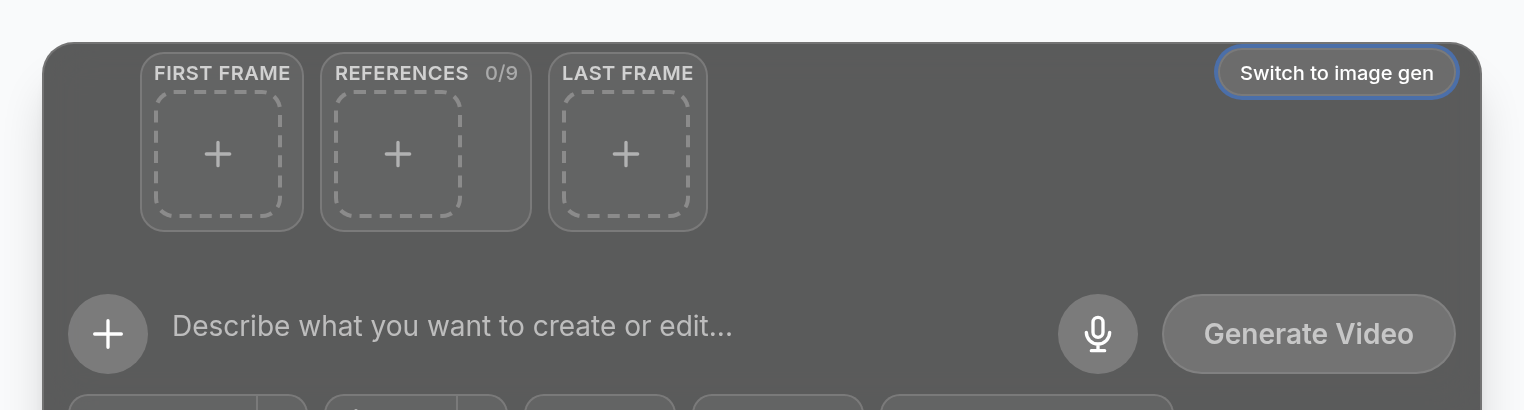
Use the first frame slot for a still you would like to animate, or for a clip you are carrying on from the end of an earlier one.
Images in the references slot are the ones the model looks at for a face or a product, and you are not choosing a frame with them. You point at them in your prompt by number, and we print that number on each thumbnail so you know which is which, as [Image1] on Seedance and a different tag on Kling. When you attach a reference the model still has no idea where the thing belongs in the scene, so write that into the prompt yourself, along the lines of "the app shown in [Image1] is on her phone screen".
An image in the last frame slot is where your video ends, and if you give the model a first frame and a last frame together it will fill in the movement between the two, which is a dependable way to build a transition.
Sections your chosen model cannot use are greyed out, with the reason in the tooltip. Wan and Runway accept a first frame and nothing else, Kling v3 accepts a first and a last frame, and Seedance accepts either frames or references but never both at once, so choosing one greys out the other. All of that is visible on the bar while you are still setting the shot up.
MiniMax H3 is in the model list, at 768p and at 2K
You will also see this model called Hailuo 3, or Hailuo 03, which are the same thing.
| Tier | Output | 5 seconds | 15 seconds |
|---|---|---|---|
| MiniMax H3 768p | 768p, 4 to 15s | 667 credits | 2,000 credits |
| MiniMax H3 2K | 2K, 4 to 15s | 1,083 credits | 3,250 credits |
The 768p tier is the cheapest way to get a long clip out of Bildy at the moment, at 2,000 credits for fifteen seconds, and it takes either text on its own or a first-frame image. The 2K tier gives you a far bigger frame for the same lengths, which makes a difference on a television or when you crop into the clip later.
You may have read about H3 Max, which is considerably faster. fal.ai trained that one and only fal.ai runs it, and Bildy goes through Replicate, so what you get here is the base H3.
Your style preset and your saved characters now go to the video model
When you pick a style preset in video mode we add it to the prompt as description, so it applies to every video model in the list.
We handle a saved character the same way, putting the name and the description into the prompt, and if the model you picked has a free reference slot we send the character's picture as a reference image as well. On a model with no reference slots you still get the name and description in the prompt, and we say so under the chips so you can see what the model was given.
A cheap way to try this on one shot
Take the kitchen example and run it cheaply first:
- Switch to video mode and pick Seedance 2.5 at 480p, where a five-second draft costs 917 credits, so being wrong about the scene is cheap.
- Put your product screenshot in the References section and leave the First frame section empty.
- Write the scene as though the screenshot does not exist, describing the woman, the room, the light and the camera move, then add one sentence that points at the reference.
- Generate, then check whether the interface survived and whether the motion reads the way you wanted.
- Once the scene works, run it again at 720p, or move up to MiniMax H3 2K if you need the bigger frame.
For a transition between two stills, put one in the First frame section and the other in the Last frame section and describe what happens in between, which Kling v3, Luma Ray and Seedance all handle.
Everything here is in the image editor at bildy.ai, where the model picker shows you what each clip length costs.